What's new

New in GarageFlow

Every release as it ships: what changed, why, and where to find it in your shop.

GarageFlow Tech, the app for your technicians, arrives in November
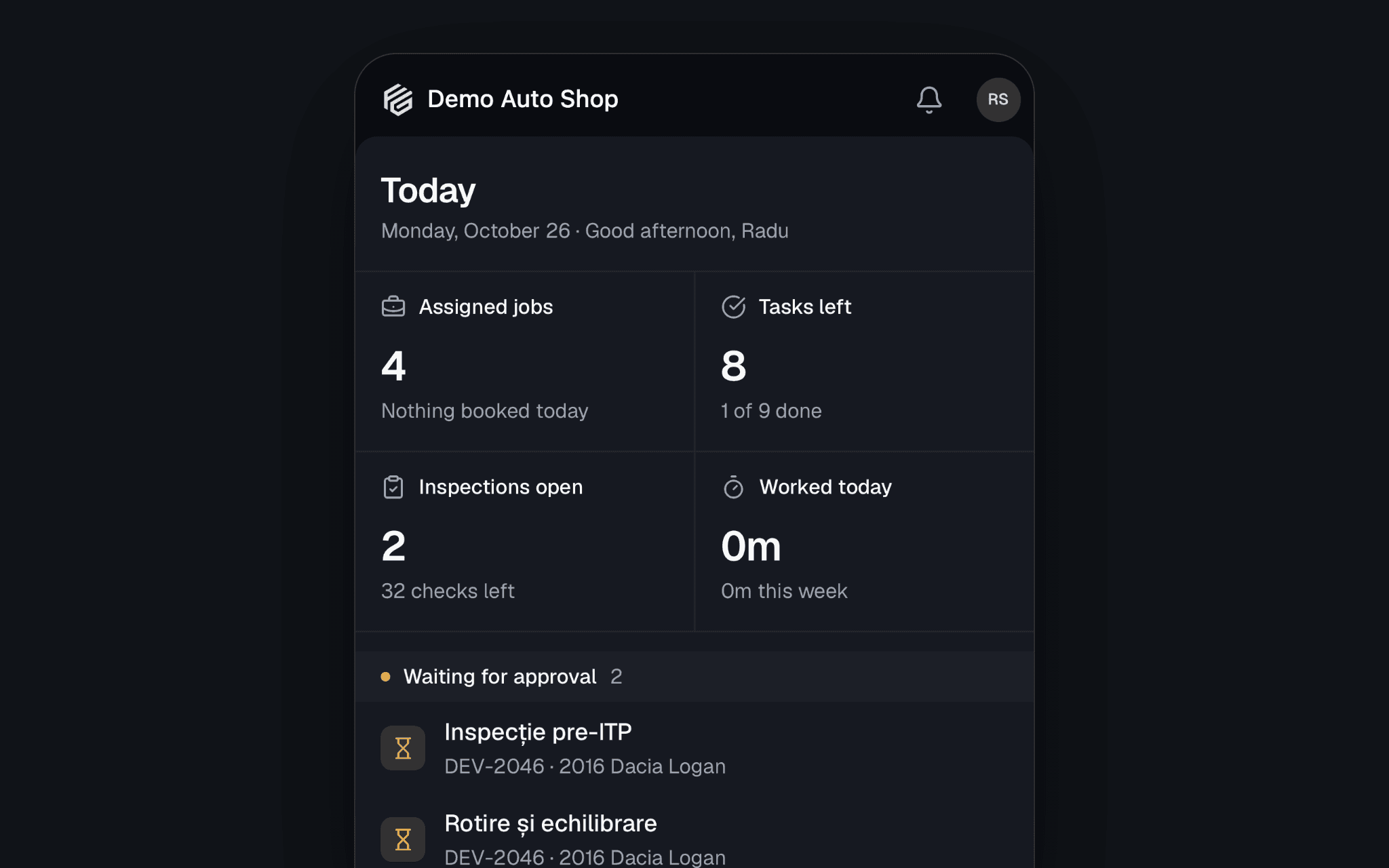
In November your technicians get an app of their own. GarageFlow Tech puts the work on the phone in their pocket: the jobs assigned to them, the clock, inspections with photos, and parts. It comes to iPhone and Android, it's included on every plan, and they sign in with the same email and password they use for GarageFlow on the web.

Today, at a glance

The Today tab opens on what's in front of them: their jobs, Booked today, what's Waiting for approval and the Inspections to finish. A job opens on the Customer concern, then the services and their lines, the advisor's notes, the photos and the activity.

A technician sees only the jobs assigned to them, and never a price.

The clock, from the job

Start on a line runs the timer against that job, and the bar reads what's worked against what's authorized, such as 0:42:07 / 1:30:00. Stopping asks how it went: Done, mark it complete, Not finished, I'll come back to it or Keep working. It's the same timer as Time Clocks on the web, so the hours are there the moment they're worked.

Inspections, photos and recommendations

  • Start an inspection from one of your templates, then answer each check.
  • Take a photo or Record a video, and Mark up photo with circles, arrows and labels.
  • Recommend work sends what the car needs to the advisor, marked Now, Soon or Monitor, with the hours if the technician wants to estimate them. The advisor prices it.

Around the bay

  • Scan a VIN to open the job for that car, or to fill in a VIN the car doesn't have yet.
  • Parts: stock on hand and the bin, searched by part number, name or brand.
  • Move to puts the job in another lane on the board as the car moves.
  • Print an oil sticker straight from the job (more about oil stickers).
  • My hours: flagged hours against hours on the clock, this week and last.
  • Notifications when they're given a job, when the schedule changes, and when the parts for a job arrive.
  • App lock asks for Face ID, a fingerprint or the phone's passcode when the app opens.

When the signal drops

Jobs stay on the phone, and photos and notes wait their turn to sync when the connection is back. The clock, starting an inspection and moving a job need a connection, because the shop records them, not the phone.

Get your shop ready now

  1. Give each technician their own login in Settings → Users & Roles → Invite Member. Anyone on your team can sign in to the app.
  2. Assign the work. On an order, use Assign technician on each service. The app lists approved and in-progress jobs, so an estimate shows up once the customer approves it.
  3. Build your inspection templates in Lists → Inspection Templates.
  4. Fill in each part's Bin Location, so the Parts search tells a technician where to look.

The app speaks all seven of GarageFlow's languages and follows each technician's own. We'll post again the day it's in the App Store and on Google Play.
Oil stickers, printed from the order or the phone

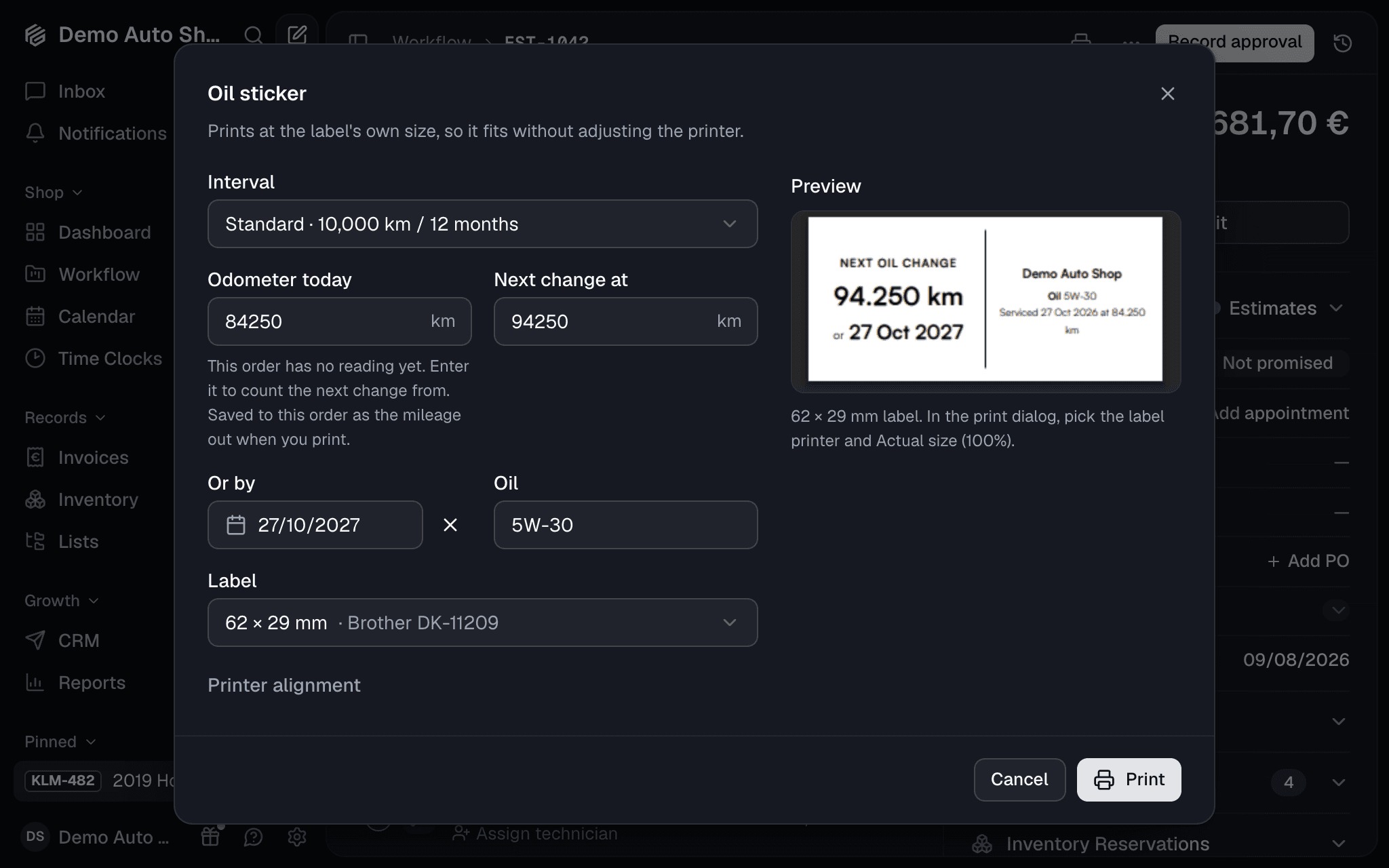
Your customer drives off with the next oil change on the windshield: a mileage, a date, or both. GarageFlow prints the sticker as a PDF the exact size of your label, so there's no printer driver to install. Oil stickers are on every plan.

  • On the order: Print → Oil sticker in the header. The dialog fills in today's odometer from the order, adds your interval, and picks up the oil grade from the order's lines. The preview is the PDF itself.
  • On the phone: a job with a car has Print an oil sticker. Print through AirPrint, or Share the PDF to a label printer's own app, such as Brother iPrint&Label.

Anyone who can open the order can print one, mechanics included: a sticker carries no prices.

Set it up once

Settings → Oil Stickers holds your intervals (Standard and Extended to start with) and the label your printer takes. Common DYMO, Brother, Zebra and DuraReady labels are built in, and Custom size covers any label from 20 to 150 mm on each side.

What happens after

The car's page shows its next oil change, and turns to Oil change due when the date or the mileage comes up. On Pro, the Oil sticker due campaign emails the customer a reminder, judged from how far they actually drive.

Read the full guide to oil stickers

Purchase orders, from the job to the shelf

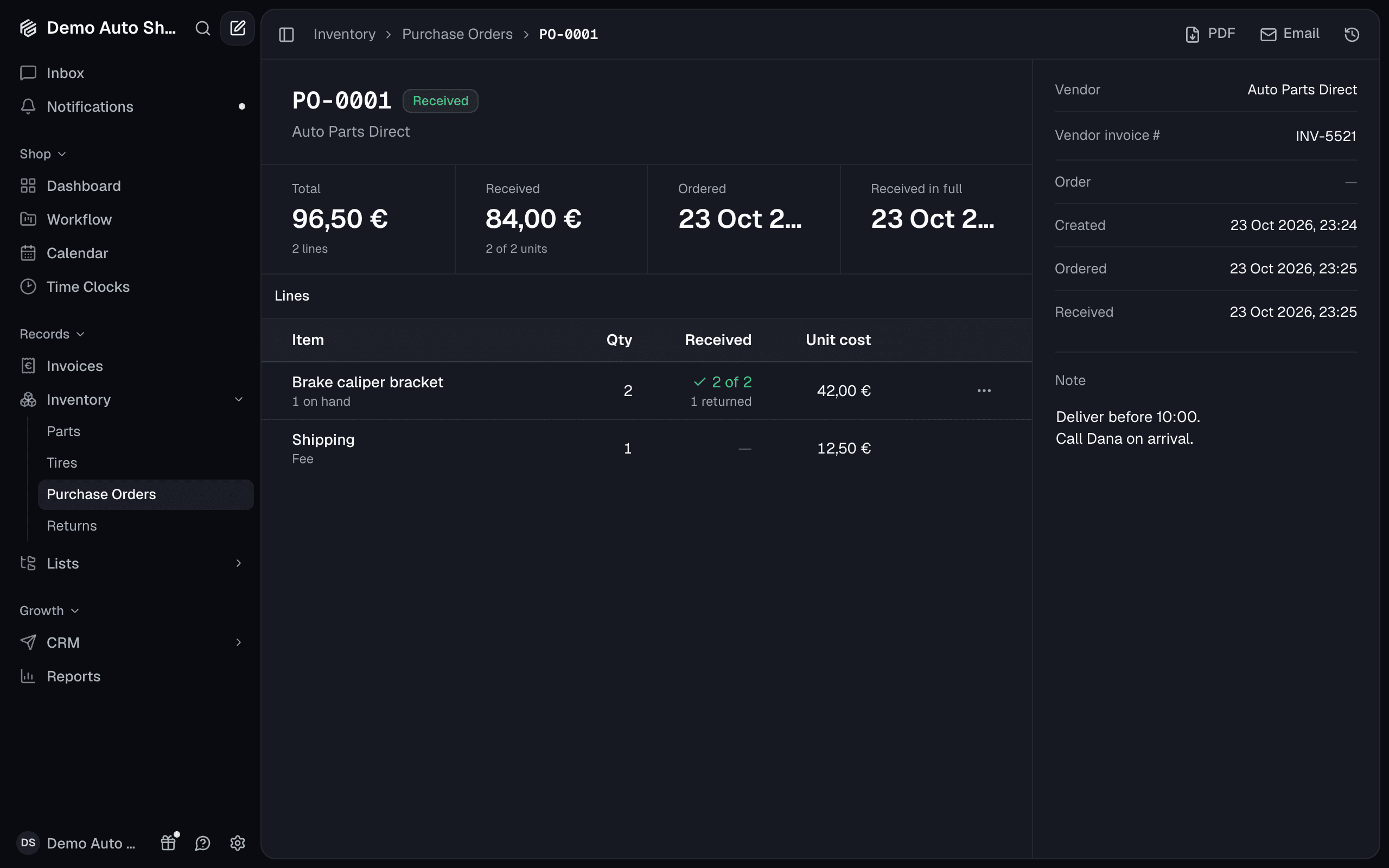
Every part you order now has a paper trail. A purchase order is what you ordered from one vendor: the lines, what each cost, and how much of it has arrived. You'll find them under Inventory → Purchase Orders, on every plan.

Order from where the need is

  • From a job: a part or tire line's menu has Order from vendor. The line goes on that vendor's draft for the job.
  • From the Parts & Tires board: tick the lines, then Create purchase orders, one draft per vendor.
  • From Low Stock: Reorder tops every part back up, less what's already on order.

Email sends the order to the vendor from your shop, with the PDF attached.

Receive at the cost you paid

Receive each line as it arrives, or Receive all. The parts go on the shelf, and the part's cost becomes what you paid, so your pricing matrix prices the next line from the real figure. A part ordered for a job is marked as received on that job and held for it.

Returns and your books

  • Returns: a part that came in wrong goes back to the vendor on a return, from the purchase order or straight from the shelf.
  • QuickBooks and Xero: a received order goes to your books as a bill, and a refunded return as the vendor's credit.

A vendor's price list

Import price list on a vendor's page takes a CSV of up to 20,000 rows and updates your costs by part number. Only the cost changes.

Read the full guide to purchase orders

A calmer GarageFlow

GarageFlow has a new layout, built to keep the work in front of you: less chrome, fewer boxes, and the buttons where your eyes already are.

The sidebar

Your pages, pinned orders, Help and Settings sit in one sidebar. Press [ to fold it down to icons when you want the room, and again to bring it back. On a phone, the menu button slides the page aside to show the same sidebar.

One bar on every page

Each page opens with a single bar: where you are, then that page's own actions, such as the next step on an order. The page itself sits right under it, with no cards in the way.

The pages you use most

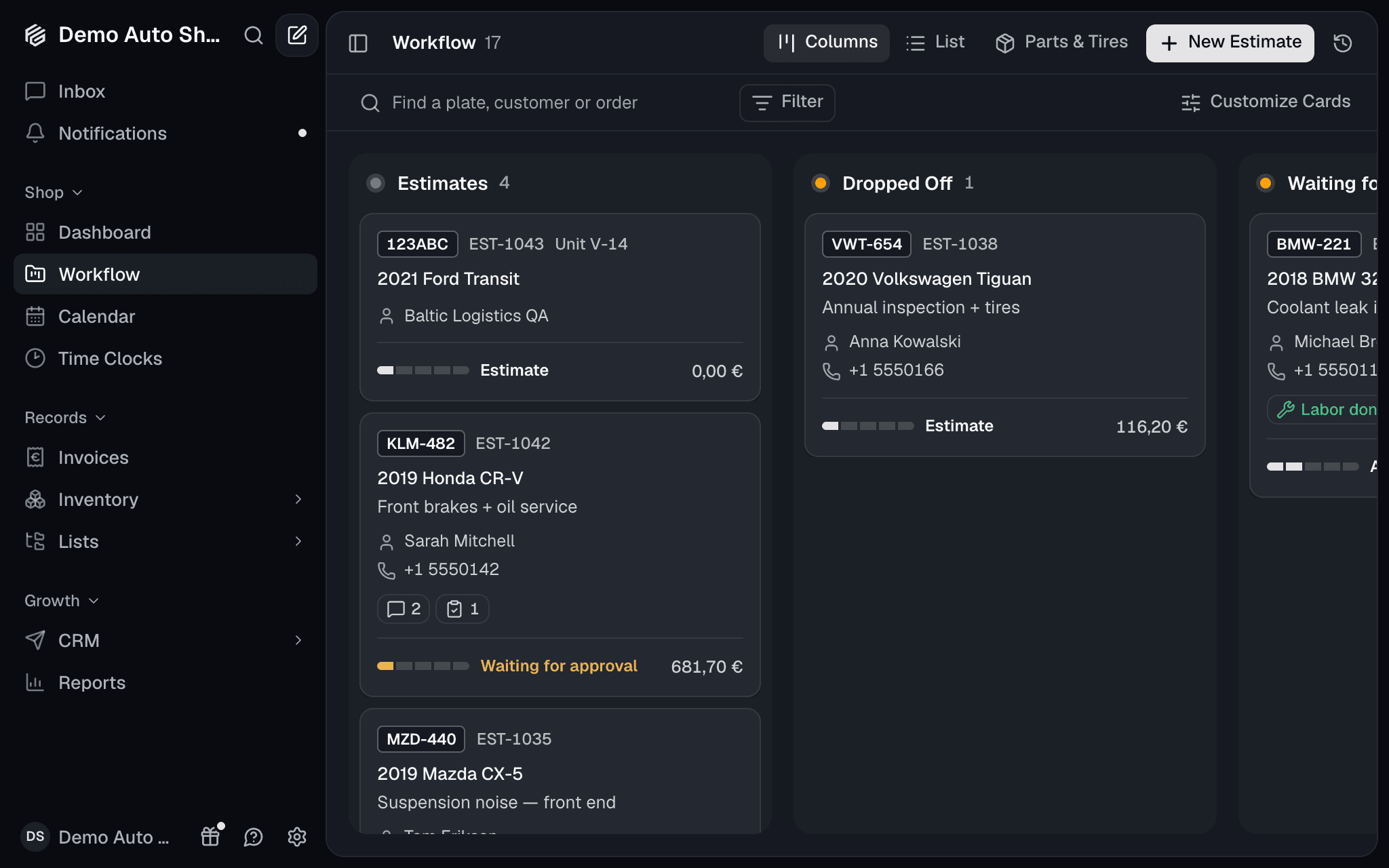
  • Workflow board: each lane is marked with a colour dot, and a card lifts and glides into place as you drag it.
  • Dashboard: your tiles sit on one sheet. Customize opens it up so you can rearrange them.
  • Time Clocks: your own clock is one line at the top, with the team under it.
  • Calendar, menus and dialogs: quieter, with the same look as the rest.

Your customers' pages

The booking page, the estimate your customers approve and their account at /my have the same new look.

Ready to run a tighter shop?

Set up your shop in minutes and see every job, estimate, and payment in one flow. You won't be charged until the trial ends.

  • 14-day free trial
  • No per-feature add-ons
  • Cancel anytime